
Snappy Kraken products may be connected to a compliance workflow. This means that content must be submitted to your compliance team before they are launched.
Getting Your Profile Approved
On some of our platforms, you will be required to submit your business information to your compliance team before you can access the rest of the Campaigns app.
- Depending on your compliance workflow, you can:
- Submit your profile - If you see a Submit button, you can send your profile to compliance with a single click.
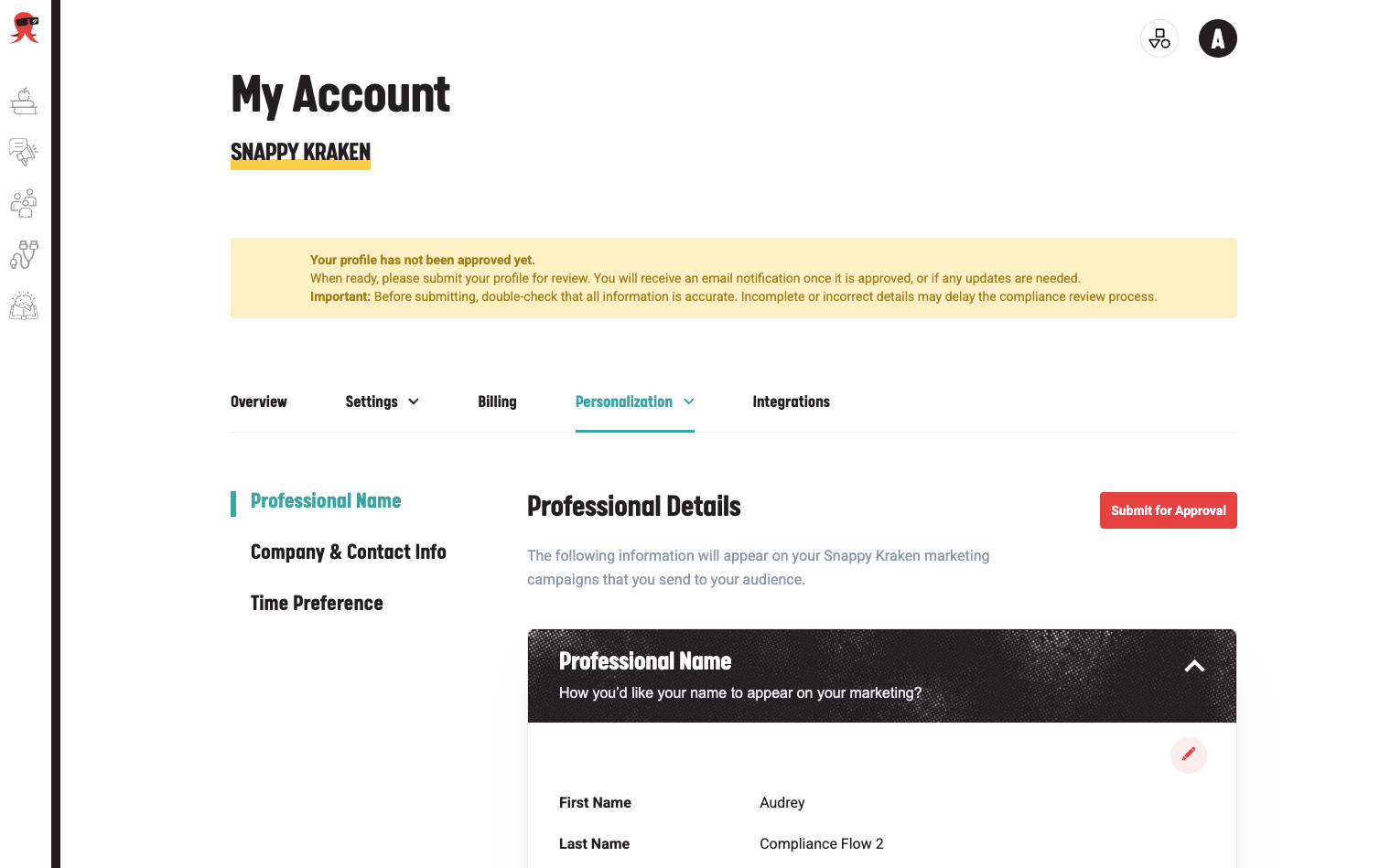
- Download your profile - If you see a Download option, you’ll need to manually provide the PDF to compliance, either by email or through their designated system. Make sure to review the PDF to ensure all information is accurate.
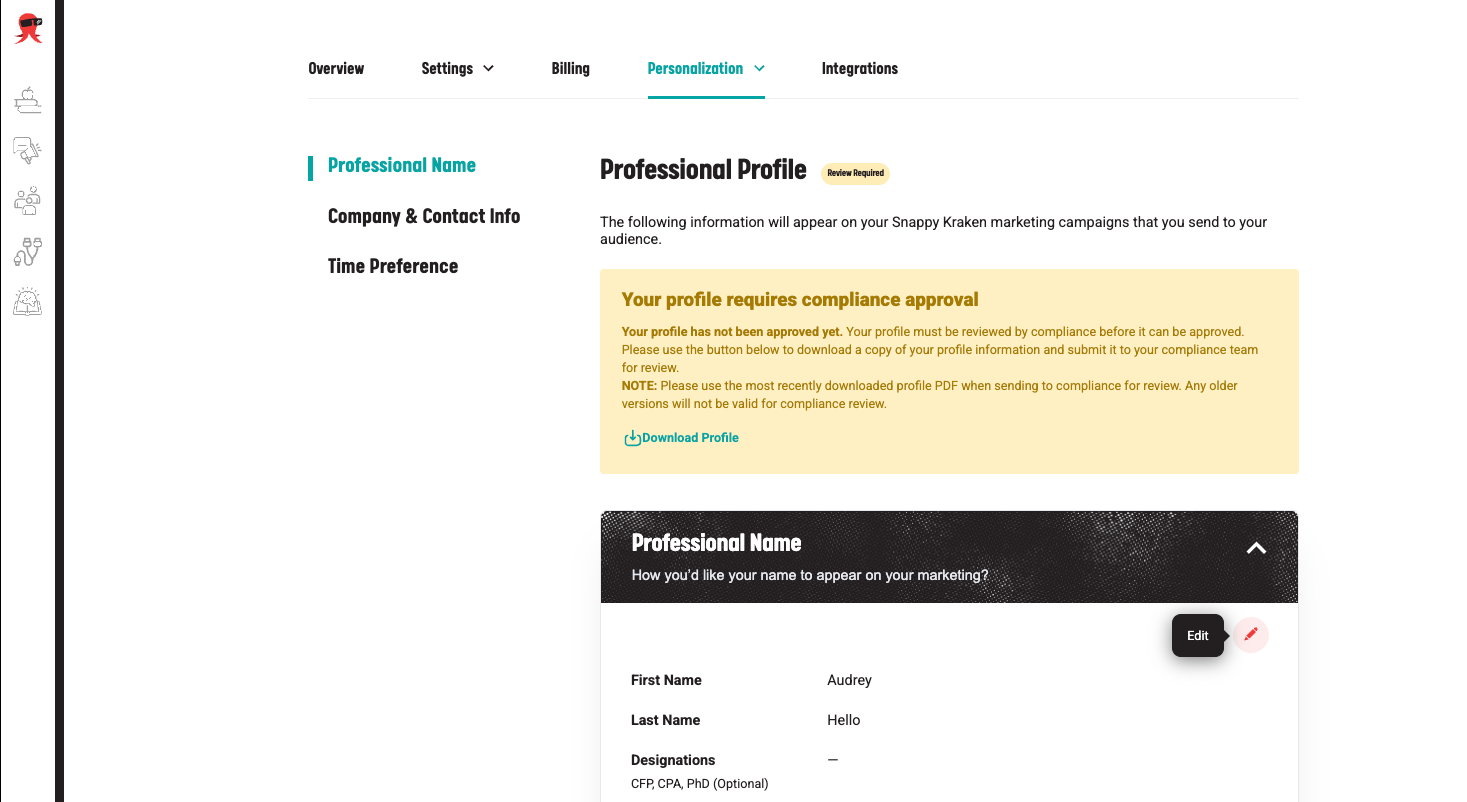
- Submit your profile - If you see a Submit button, you can send your profile to compliance with a single click.
- Submit or download your profile based on your options. Once you submit for review, the system will be locked, and you won't be able to access any other areas of the
- Once it is approved, you should receive a notification from your compliance department. Please contact your compliance team if there are any delays.
- You should now have access to the rest of the Campaigns platform.
Editing Your Profile
If you need to make changes after review (rejected or approved) or while the content is under review:
- Accessing Your Profile: Click your initials at the top right corner of the page and select My Profile.
- Click the pencil icon to unlock the profile for editing.
- This will remove the current approval status and allow you to make revisions.
- Once your updates are complete, the content will need to be resubmitted for compliance review. Follow the steps above, depending on your options, to resubmit to compliance
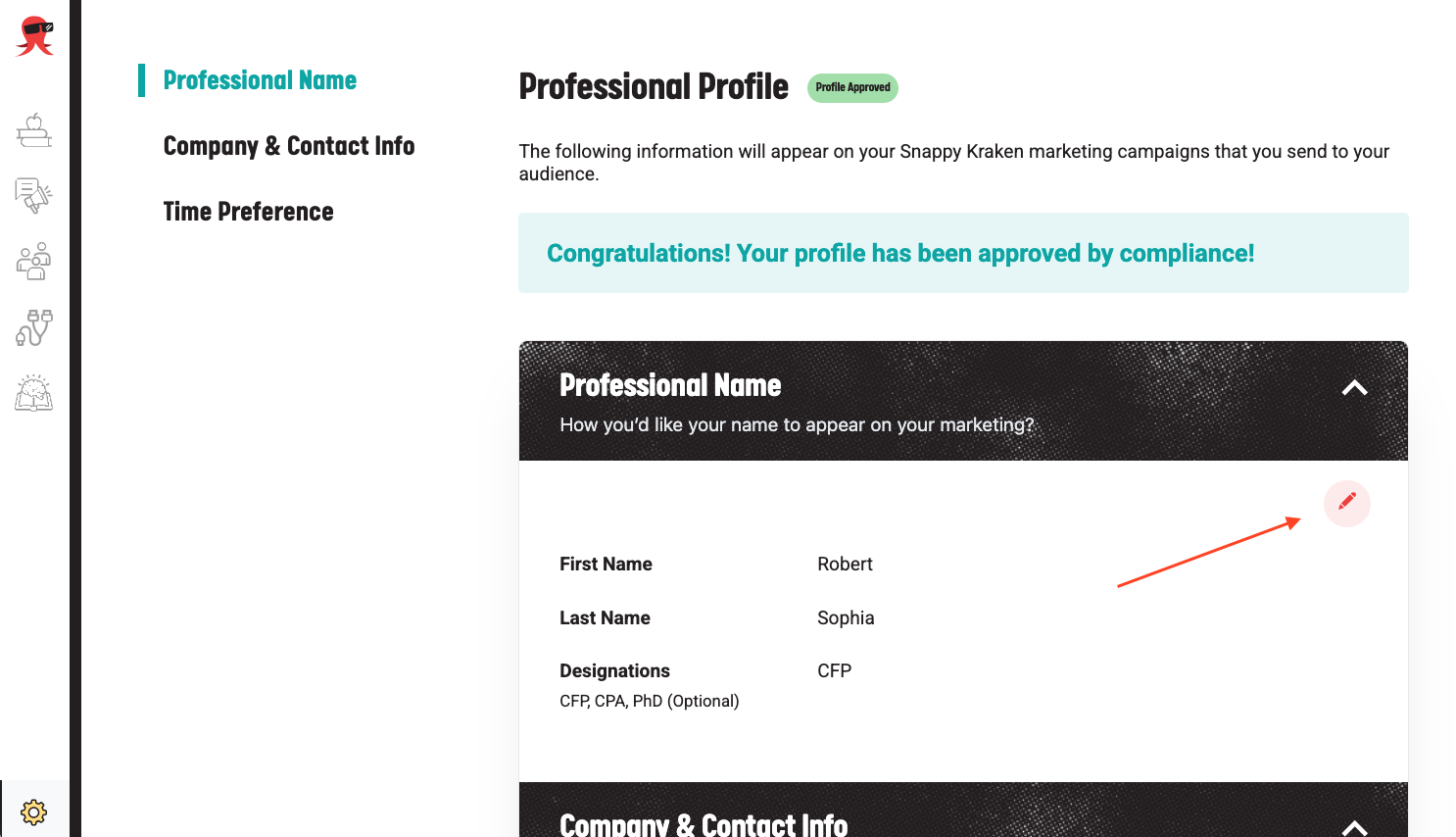
- Follow the steps above, depending on your options, to resubmit to compliance.
Getting Campaigns and Emails Approved
Similarly, some of our enterprise platforms require campaigns and email approval when they have been personalized.
Once you have completed personalizing your campaign, the platform will require approval before you can schedule or launch it.
- At the bottom of your Campaign timeline, click the "Submit to Compliance" button.
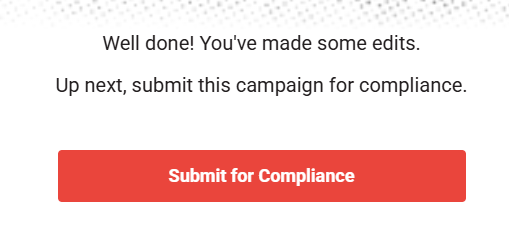
- If the button is greyed out, go back and check your campaign steps to see if any still need editing.
- If no edits were made to the campaign, the button will prompt you to add subscribers instead, and the compliance stage will be greyed out.
- A confirmation pop-up will appear. Click Yes if you're ready to submit to the compliance team.
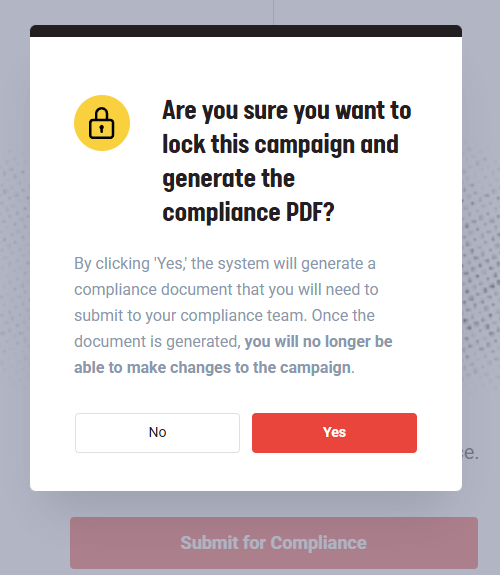
- Note that your campaign will be locked, and you will not be able to make any edits until it is approved.
- The system will generate a PDF and automatically submit it for review. you with a few options on the next page.
- The system will first generate a PDF and then provide you with options on the next page, depending on your compliance team's requirements. More commonly, you want to submit it directly to compliance by selecting "submit to compliance."
- Now, the compliance PDF should be automatically submitted to your compliance team. Please wait for a notification informing you that the campaign has been approved. (Please note that approval times are dependent on your own compliance team)
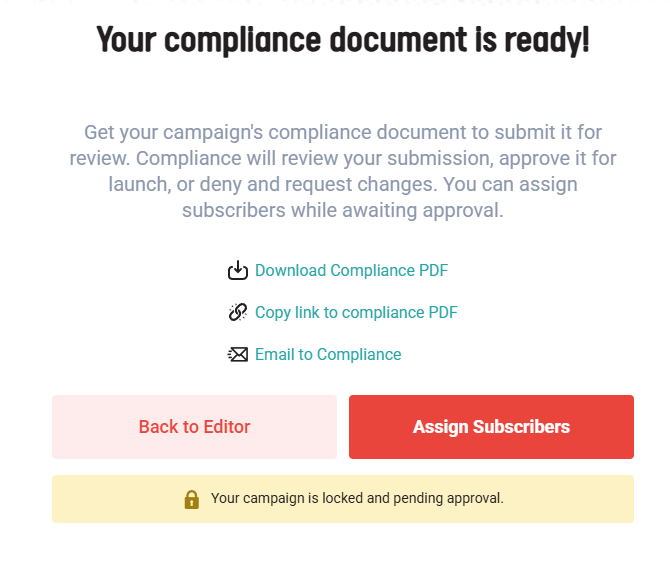
- Depending on your compliance team, you may need to use the other options. If your compliance team requires you to submit through their internal tools, you can download, copy the link, or email the PDF to them instead.
- Now, the compliance PDF should be automatically submitted to your compliance team. Please wait for a notification informing you that the campaign has been approved. (Please note that approval times are dependent on your own compliance team)
- Once the campaign is approved, the option to schedule or launch it will be available.
Cautionary Notes
- If your profile is under approval, the campaigns app will be locked, and you will not be able to access any other areas of the dashboard.
- Once approved, the profile itself (under My Profile) is locked and cannot be edited.
- If your campaign is under approval, you can assign subscribers while it's pending, but you cannot launch it or schedule it to launch.
- The Edit Campaign step will be inaccessible instead.
Compliance Archiving
Social media: If you use a social media archiving and monitoring service that captures your social media activity, it will also capture everything that Snappy Kraken posts on your behalf. This includes applications such as Smarsh, Actiance, Erado, Global Relay, and similar services.
Email replies: All replies come through the email address you provide. Those messages will be captured as long as that email is registered with your compliance archiving and monitoring service.
Email sends: Emails from our servers will not be captured by your email monitoring service unless journaling is set up. If you require journaling on your account, please contact support with the email address that emails will be journaled to.
Additional Information: All content is permanently archived on the Snappy Kraken system and can be downloaded in PDF format at any time. Further usage and contact reports are also available to comply with SEC Rules 17a-3 and 17a-4 and FINRA Rules 3110 and 4511.
Common Questions
My campaign/account was approved, but nothing happened.
- Please verify that your submission was not automatically approved. A human must approve all submissions to be valid.
- If your submission was manually approved, we recommend contacting your compliance team to confirm whether they approved the campaign within Snappy.
- If you have verified that your submission was approved and your compliance team has approved it inside Snappy, please contact support@snappykraken.com for further assistance.
If you have verified that your submission was approved and that your compliance team approved it in Snappy, but you still encounter issues, please contact us for further assistance.