
Having trouble importing a file? This article will help you troubleshoot the issue. If you're looking for a tutorial on adding many contacts, please visit this article.
Step 1: Ensure all required information is present.
To complete your upload, three columns must be filled out for every contact:
- Column A – First Name
- Column B – Last Name
- Column C – Email Address

The email address is what we use to recognize each contact, so it must be included and must be accurate.
If any of these three fields are missing, the contact will not upload.
We also have a helpful template you can download here.
Step 2. Save as CSV UTF-8 File Type
If you're having trouble uploading your CSV file, try re-saving it as UTF-8. Some file types do not work, but this is the default accepted format.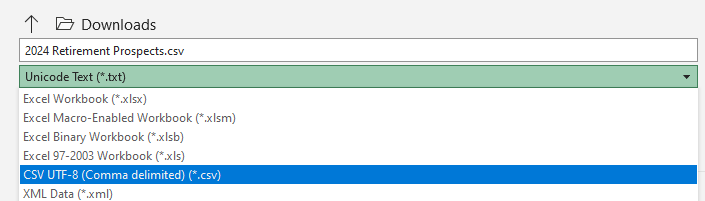
3. Check for the following flags:
- An import containing the email address of an already archived contact will result in an import failure. Ensure your list is clean. For more information on how to view your archived contacts, click here.
- Any special characters in your file will cause an import failure. To avoid issues, ensure that your files only contain periods or hyphens.
If you are still experiencing issues, please submit a support ticket using the support@snappykraken.com email. Please be sure to let us know what group you are uploading to and make sure to have the CSV file attached.