
The Visual Email Builder lets you easily create personalized emails for custom marketing communication using Artificial Intelligence and a drag-and-drop builder using blocks.
What this article helps you do
Use the AI Assistant in the Campaigns Visual Builder to update an email or landing page by describing the change in plain language. You can ask the Assistant to update the whole design or a single selected block, then review and save the result.
Before you begin
- Your fleet must have the AI Assistant enabled by an administrator.
- Your Snappy AI monthly allowance must be greater than zero.
- Save any important work before generating changes, and review the Assistant’s output carefully.
How it works
The AI Assistant works inside the email and landing page visual builders. The Assistant is not available for social posts. It also does not work with older Campaign templates. It uses your prompt to update the selected block or, if no block is selected, the entire design.
How to do it
Update an entire design
- Sign in to Campaigns.
- Open the campaign email or landing page step you want to edit, following the same steps when launching a campaign.
- Open the AI Assistant in the visual builder. Make sure no block is selected.
- Enter your request in Ask AI, then press Enter.
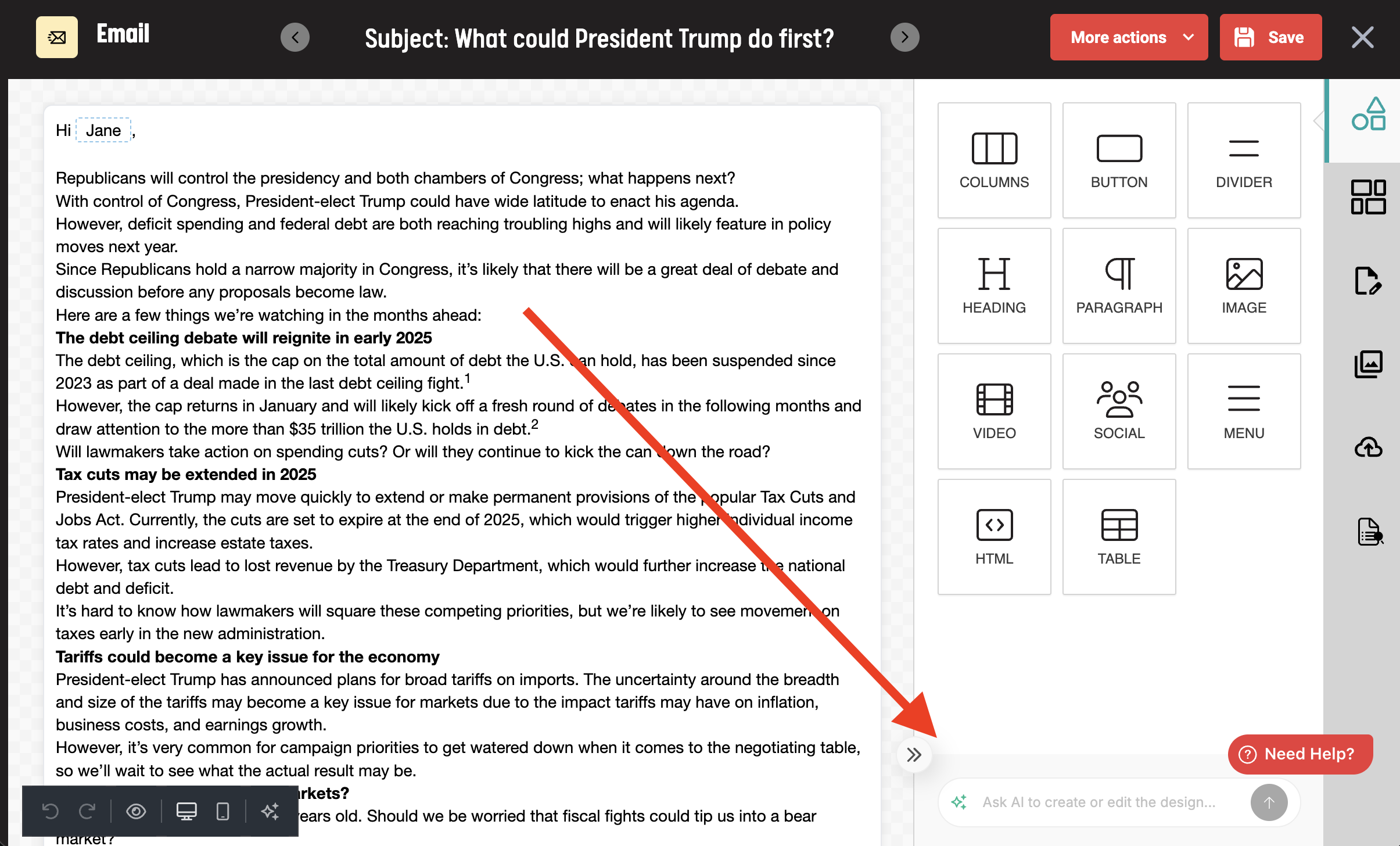
- Review the changes in the editor.
- Select Save when the result is correct.
Update one block
- Open the campaign email or landing page step in the visual builder.
- Select the block you want to change, such as a text block.
- Open the block’s AI Assistant.
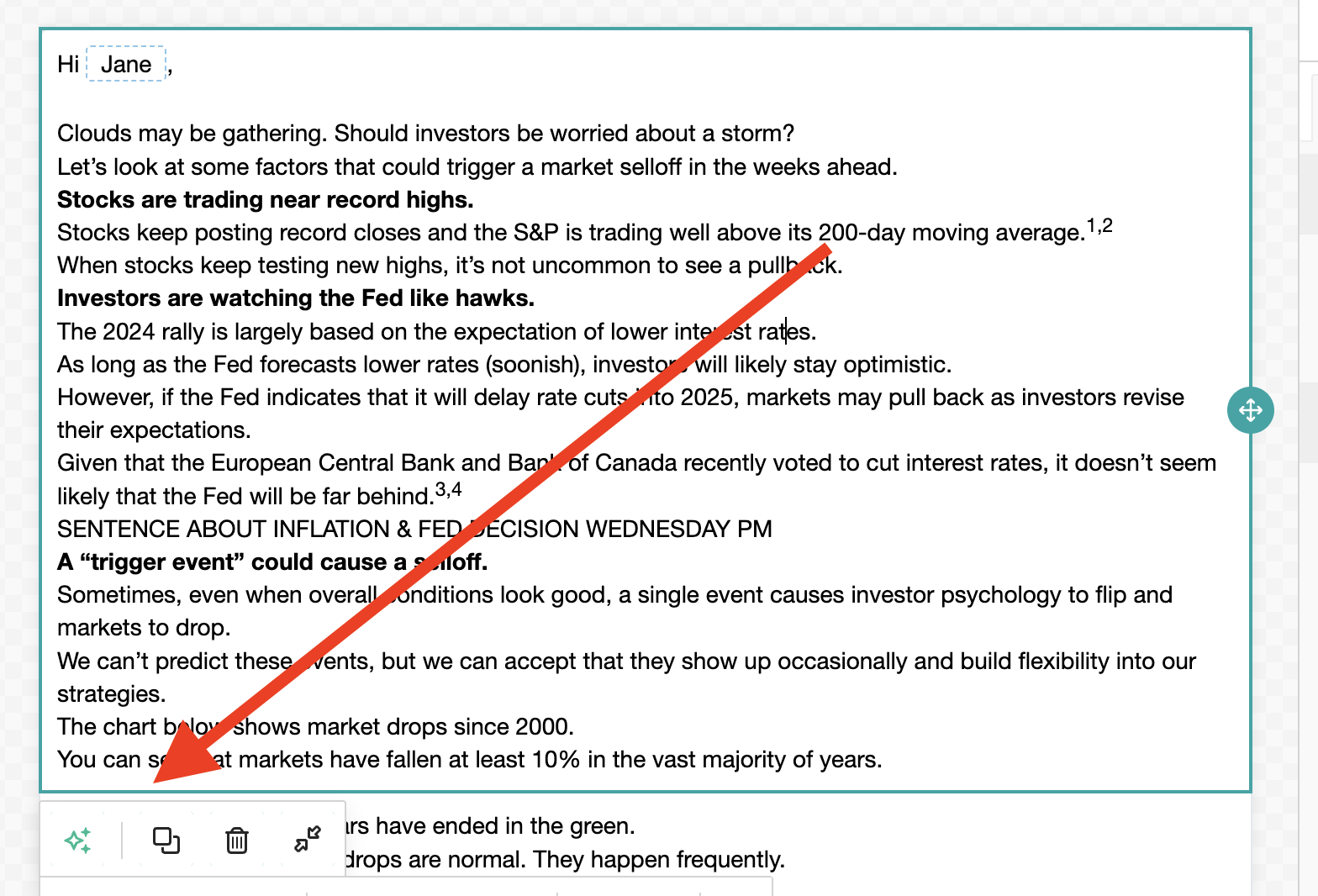
- Describe the change and submit the prompt.
- Review the updated block and select Save.
What happens next
The Assistant applies the generated change directly in the editor. Review the complete design before saving, especially when you asked for a whole-design update.
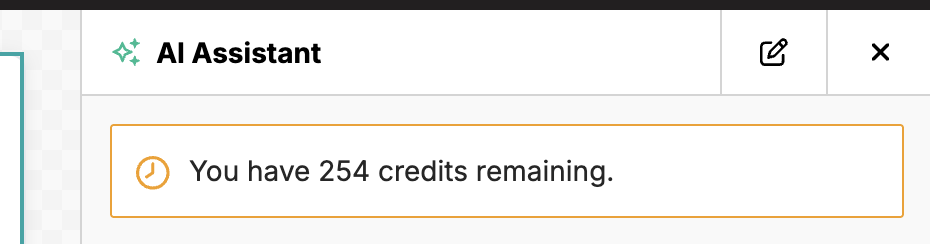
Your remaining Snappy AI balance updates after each generation. When you have used your monthly allowance, the Assistant may still be visible, but the visual builder displays a blocking message. You cannot start another generation until credits are available again.
Troubleshooting
- The AI Assistant is missing:
- Ask your administrator to confirm that the feature is enabled for your platform.
- Confirm that you are editing an email or landing page, not a social post.
- Confirm that your campaign does not use an older template. If you see a single page with various fields rather than the Visual Builder’s right-hand panel, you are editing an older campaign. The AI Assistant is available only for Visual Builder templates.
- The Assistant is blocked or will not start a generation: Check your monthly Snappy AI usage against your allowance. If you still have credits, ask your organization’s administrator to verify the feature setup.
- The design did not change as expected: Make your prompt more specific and confirm whether you want to update one block or the whole design. Review the result and try again if needed.
When to contact Support
Contact Support if the Assistant remains unavailable after you confirm that the feature is enabled and you have Snappy AI credits available.
When contacting Support, include:
- The campaign
- The step type (email or landing page)
- The prompt you submitted
- What changed in the editor
- Any blocking message or screenshot