
The CRM Sync History page shows a record of CRM syncs that have run for your account. You can use it to confirm whether a sync finished successfully, see how many contacts were created or updated, and review any contacts that could not be synced.
How to Access the Sync History page
There are two ways to access the sync history page.
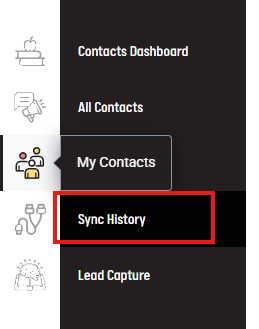
My Contacts
- In your Campaigns dashboard, click on the My Contacts icon in the left panel.
- On the new menu that opens up, select the Sync History page.
- Review the list of syncs grouped by day. Each row represents one sync run.
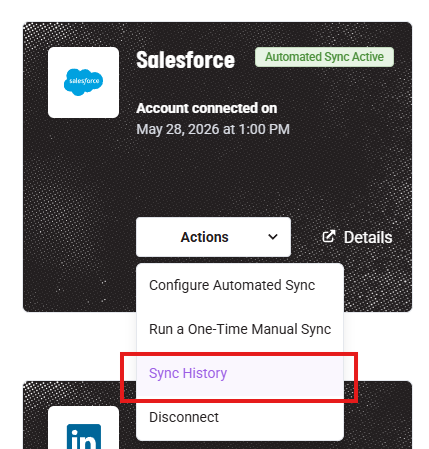
Integrations
- In your Campaigns dashboard, click on the My Contacts icon in the left panel.
- Scroll to your CRM and click the Actions dropdown.
- Select Sync History.
- Review the list of syncs grouped by day. Each row represents one sync run.
Read a sync row

Each sync row may include:
- Sync ID: The unique identifier for that sync.
- Parent ID: Shown for incremental syncs. This means the sync is connected to a previous sync.
- Status: The current or final state of the sync.
Initial syncs vs. incremental syncs
There are two sync types:
- Initial sync: A full sync of contacts. Initial syncs do not have a Parent ID.
- Incremental sync: A sync that only checks changes since the last successful automated sync. Incremental syncs have a Parent ID.
Common statuses include:
- Pending - The sync is waiting to begin.
- Processing - The sync is currently running.
- Completed - The sync completed.
- Failed - The sync did not complete.
View sync details
Click a sync row or “Show Details” to expand it.
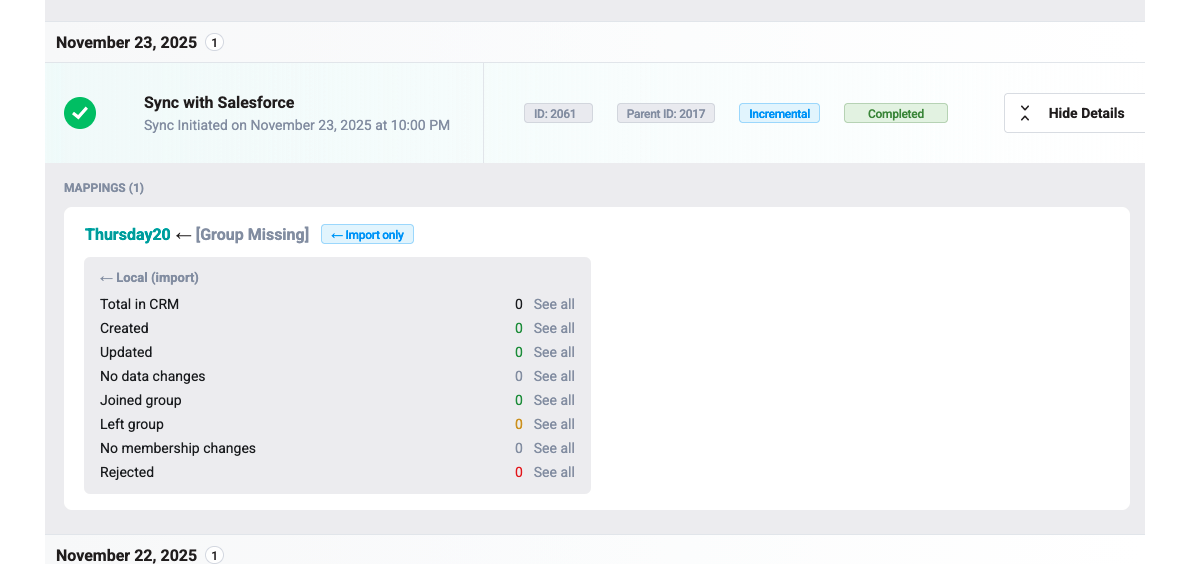
Expanded sync details are organized by mapping. A mapping represents a connection between a Snappy Kraken contact group and a CRM group.
Each mapping card shows a breakdown of what happened during the sync.
Understand the mapping status
Mapping statistics may be shown for:
- Local: Snappy Kraken contacts and groups.
- Remote: CRM contacts and groups.
For one-way syncs, you may only see the relevant side. For two-way syncs, you may see both Local and Remote results.
- Created - A new contact was created.
- Updated - An existing contact was changed.
- Joined - A contact joined the group during the sync.
- Left - A contact left the group during the sync.
- Rejected - A contact could not be synced. Review the issue details for the reason.
Important notes
- Only one sync can run at a time. If a sync is already in progress, a new sync cannot start until the current sync finishes or fails.
- If your CRM connection is lost, the Sync History will be inaccessible until the CRM is reconnected.
- If a CRM group used in a mapping is deleted, the mapping may show [Group Missing] instead of the CRM group name. The sync can still appear to be running, but contacts will not be fetched from the missing CRM group. Update or remove the affected mapping from the mapping page.
When to contact Support
There are two types of issues you may see:
- Sync-level issues: These stop the entire sync from completing.
- Contact-level issues: These affect individual contacts, but the rest of the sync may still complete.
Contact Support if:
- The same error continues after retrying.
- You are unable to reconnect your CRM.
- You cannot determine which contact or group needs to be corrected.
- A sync remains stuck in Pending or Processing.