
IMPORTANT NOTES:
- Not all features are available on every Enterprise platform.
- Back up your CRM data before syncing with Snappy Kraken. Data loss may occur depending on how your data is organized.
- Snappy Kraken does not delete contact information. Instead, move contacts to an inactive group in your CRM to ensure they are properly removed from Snappy Kraken groups.
Before You Start
Before connecting your Black Diamond CRM to Snappy Kraken, there are important setup requirements to ensure a successful integration.
The Black Diamond integration requires Outreach and Outreach Member objects to be available and properly configured before connecting.In this integration model:
Outreach represents a structured marketing or communication initiative (similar to a campaign or engagement effort).
Outreach Member represents the individual contacts associated with that Outreach.
Snappy Kraken uses these objects to map contacts and engagement records between systems.
Important: If your CRM environment does not already include an Outreach object, it must be created by a Black Diamond administrator before attempting to connect the integration. If the required Outreach and Outreach Member objects are not configured properly, the integration cannot be connected or synced successfully.
I. Connecting Black Diamond:
Start by clicking the Integrations icon
 on the left-side menu.
On the Integrations page, click the + Connect button in the Black Diamond box.
You’ll be redirected to Black Diamond to authorize the connection. Log in with your credentials if prompted.
Review the requested permissions and click Authorize (or Allow) to proceed.
Once your account is connected, you’ll receive a confirmation message in Snappy Kraken.

II. Sync Options:
Keep in Sync Both Ways (Both Ways)
This feature allows for a two-way sync of your contacts between Snappy Kraken and Black Diamond. Any updates or new contacts in Snappy Kraken will reflect in Black Diamond, and vice versa.
Send to Black Diamond Only (Export)
This option exports and updates contacts in Black Diamond based on changes made in Snappy Kraken.
Import
This option imports and updates contacts in Snappy Kraken based on changes made in Black Diamond.
III. Configure Automated Sync:
To import contacts from Black Diamond into Snappy Kraken, follow these steps:
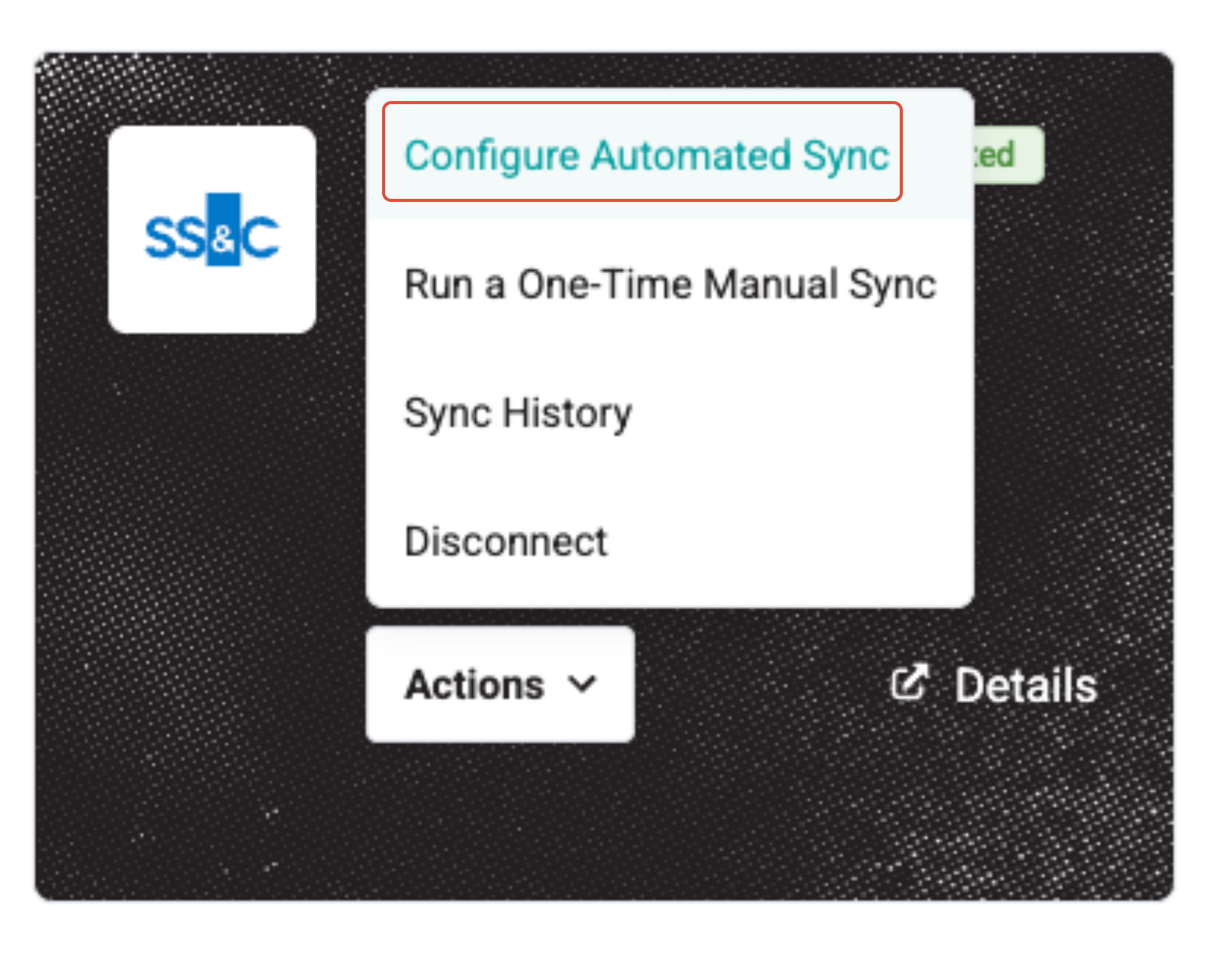
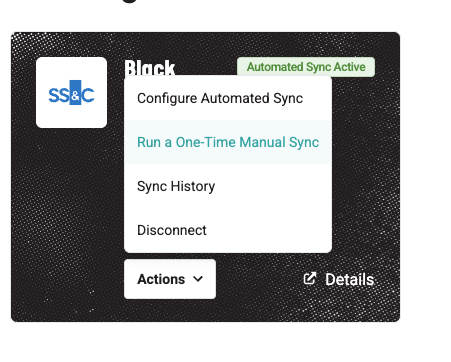
Go to Active Integrations, then Black Diamond Account > Actions > Configure Automated Sync.
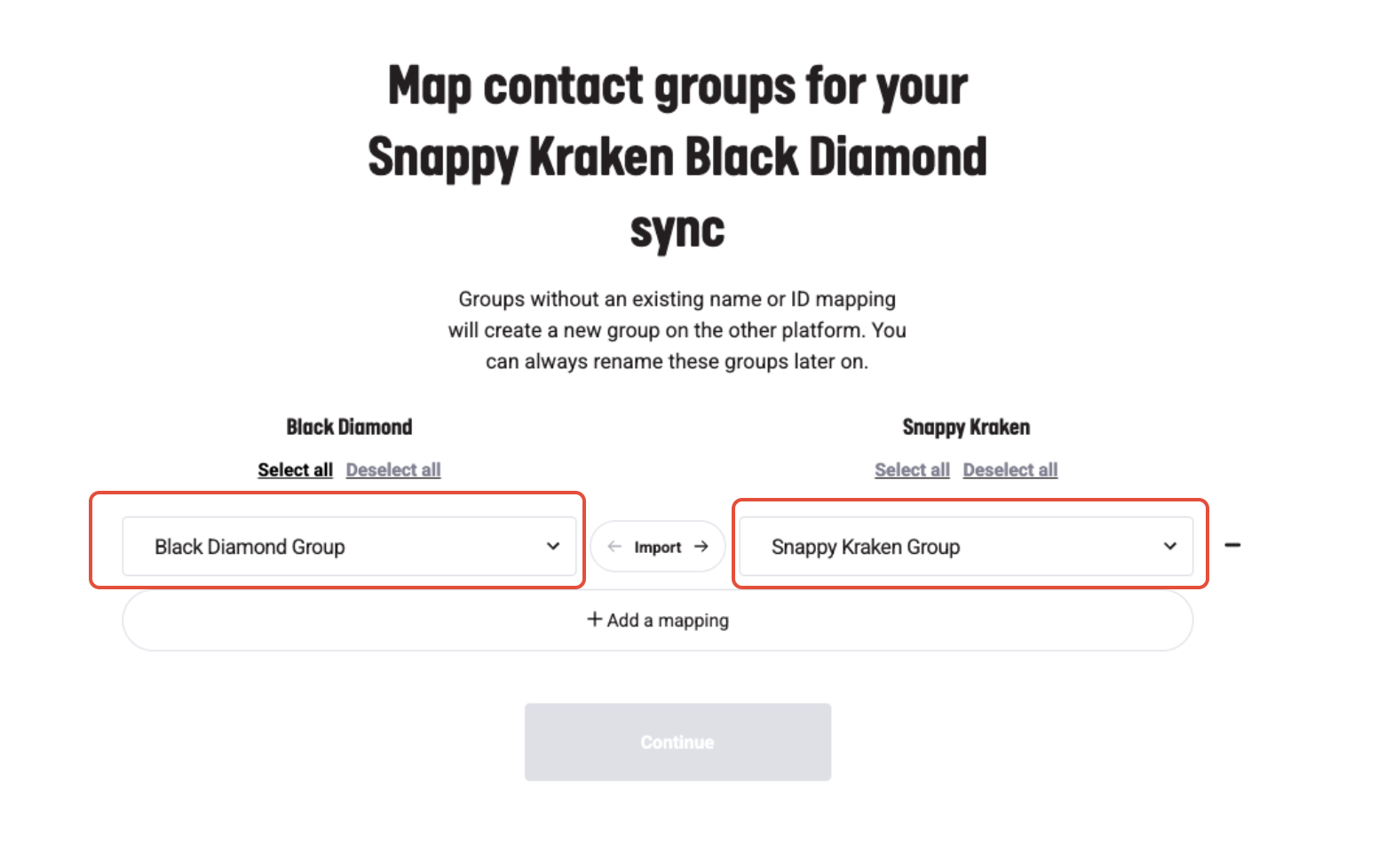
For each mapping:
Under the Black Diamond column, select the Outreach you would like to sync.
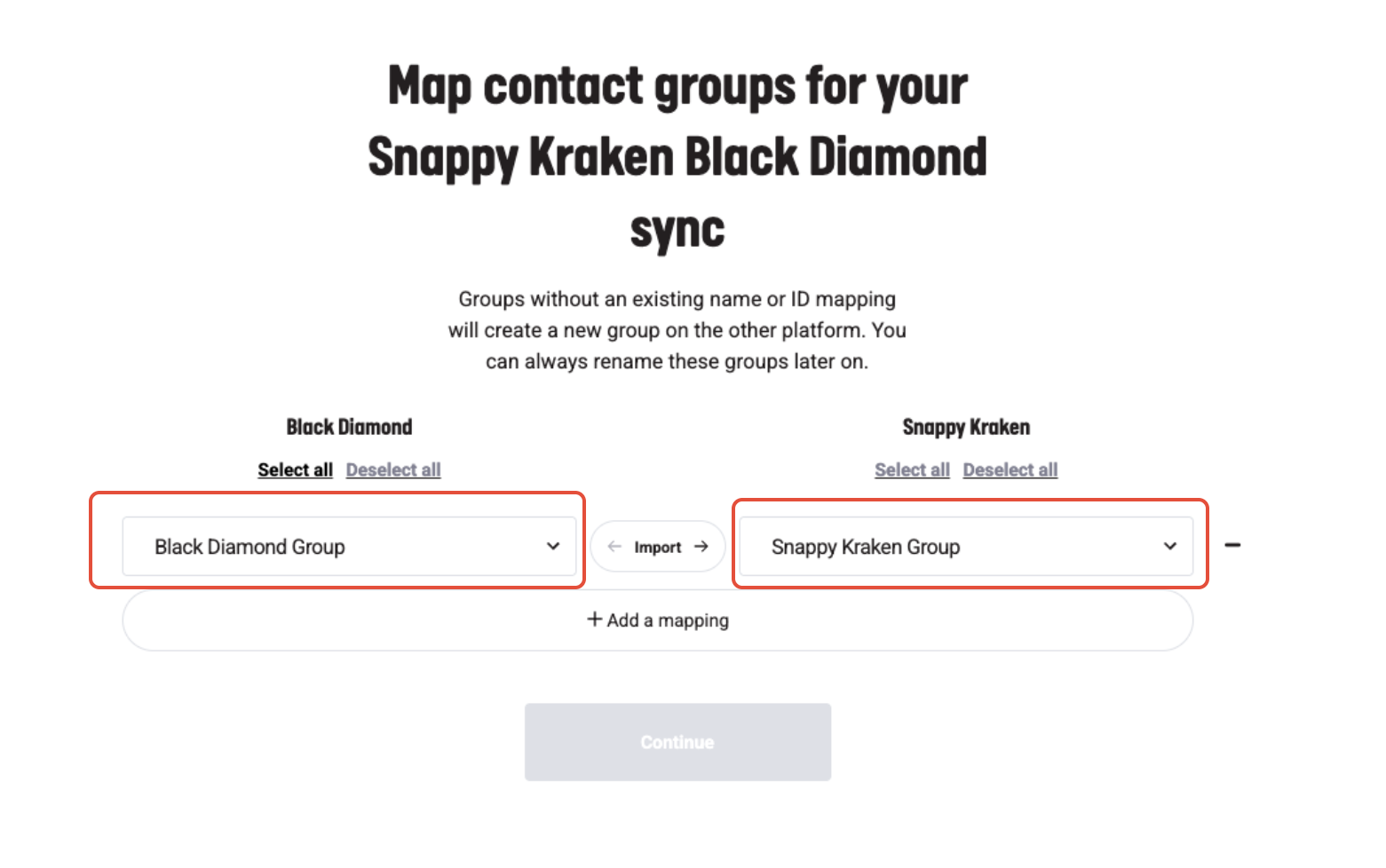
Under the Snappy Kraken column, choose the group you want to import or sync to.
Select whether you would like to Import, Export, or Sync the contacts.
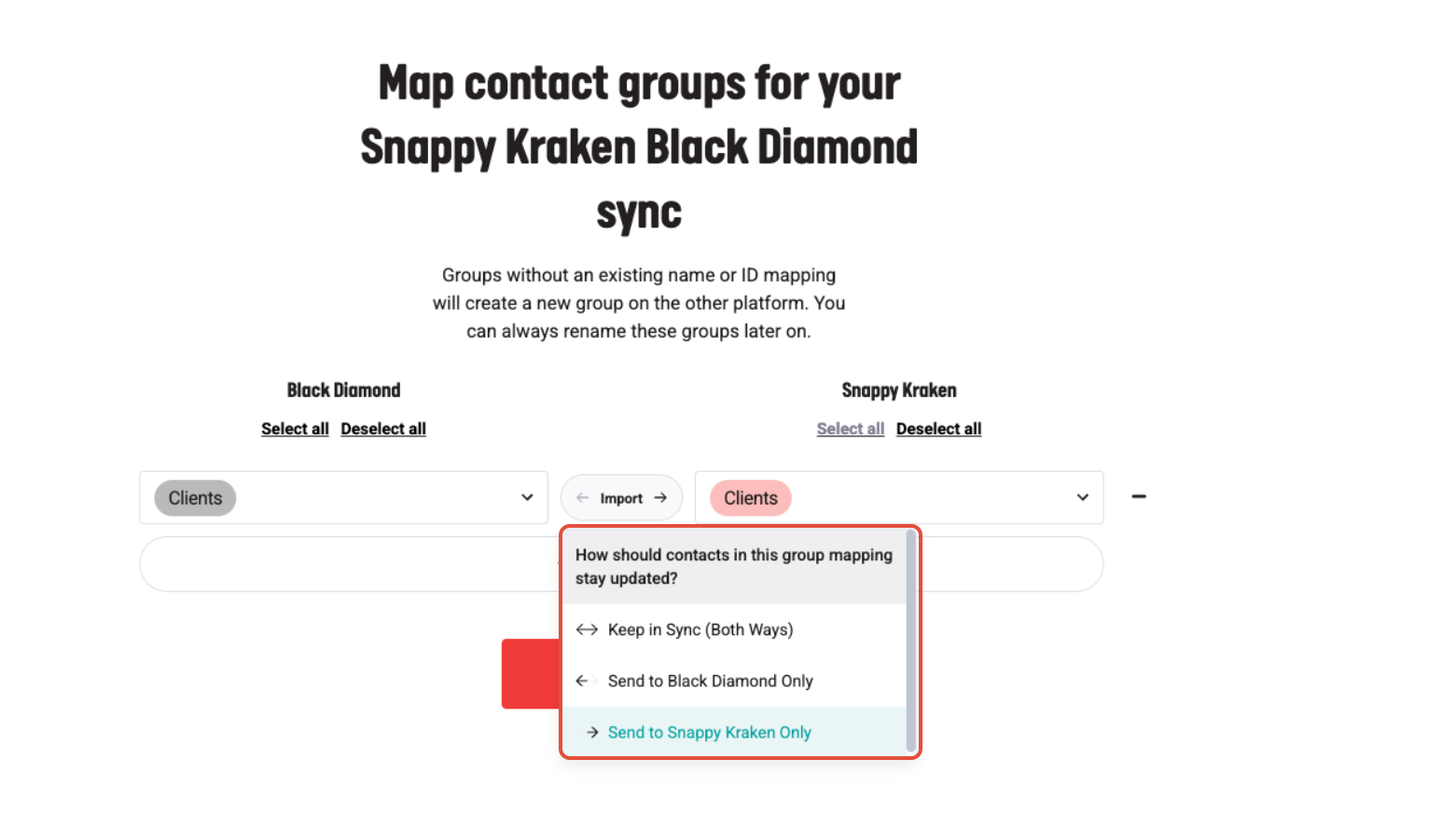
Click +Add Mapping to add additional Outreach-to-Group mappings.
Click Continue.
Agree to the terms (if applicable) by clicking Finalize Sync.
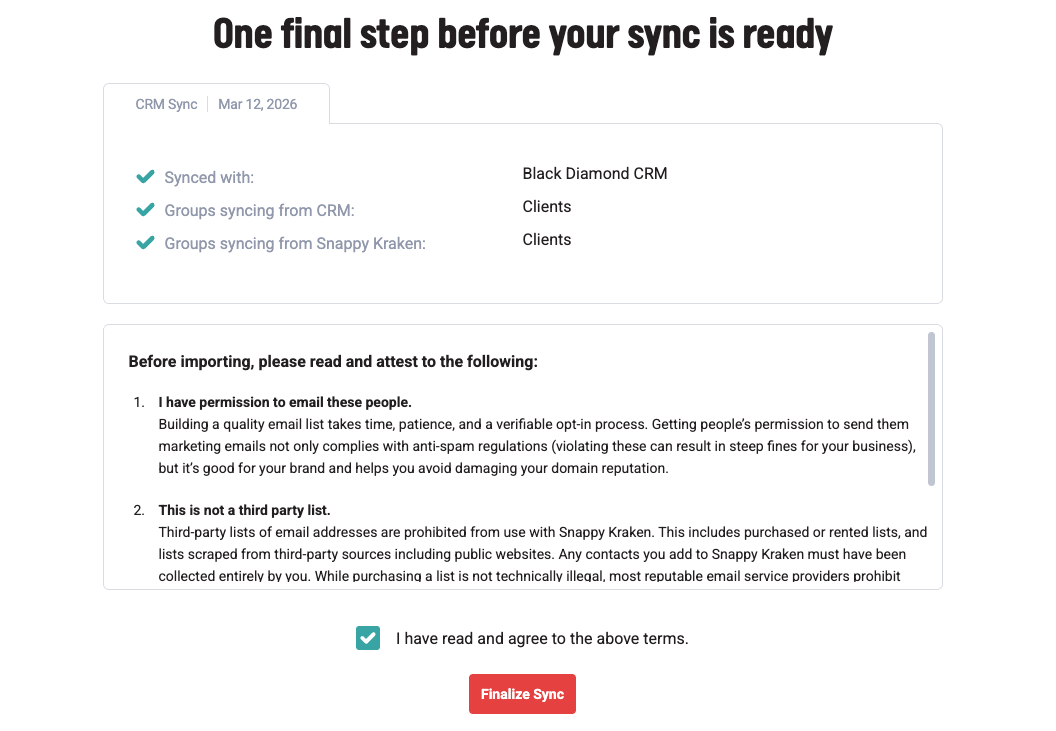
The syncing will run in the background. Once complete, you’ll receive a notification within the app.
IV. Run a One-Time Manual Sync
Manual syncs trigger updates based on the selected sync options at the time they are run. If you’ve updated contacts, added new contacts, or created new groups in Snappy Kraken and want these changes reflected one time in Black Diamond, follow these steps:
Go to Active Integrations, then Black Diamond Account > Actions > Run a One-Time Manual Sync.
Configure your Outreach-to-Group mappings and select Import, Export, or Sync.
Click Continue and then Finalize Sync.
The sync will run in the background and notify you once completed.
For further assistance, feel free to contact us — we’re here to help!