
What this article helps you do
Understand what Snappy AI does, who can use it, and what needs to be enabled before you open it.
Before you begin
- You must be an eligible Advisor or Marketing Admin user.
- Snappy AI access must be enabled for your organization or your user.
- Your organization must have the required AI service configuration in place.
How it works
Snappy AI is a chat assistant built into the Campaigns product. You can ask questions in plain language about your account, campaigns, and marketing activity. Snappy AI retrieves live platform data when it answers instead of relying only on general knowledge.
At this time, Snappy AI is view-only. It can read information, but it cannot create, change, launch, send, or delete anything.
How to do it
- Sign in to Campaigns.
- Look for the Snappy AI icon in the top navigation bar.
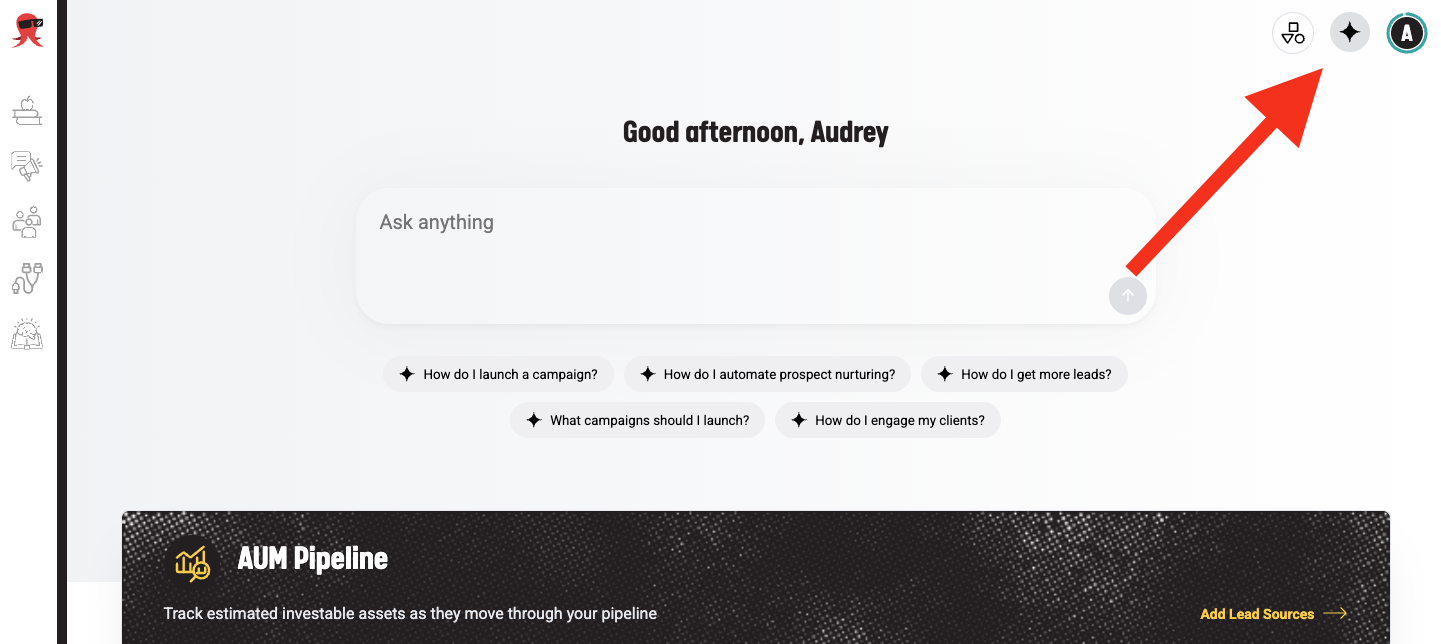
- Select the icon to open the chat panel.
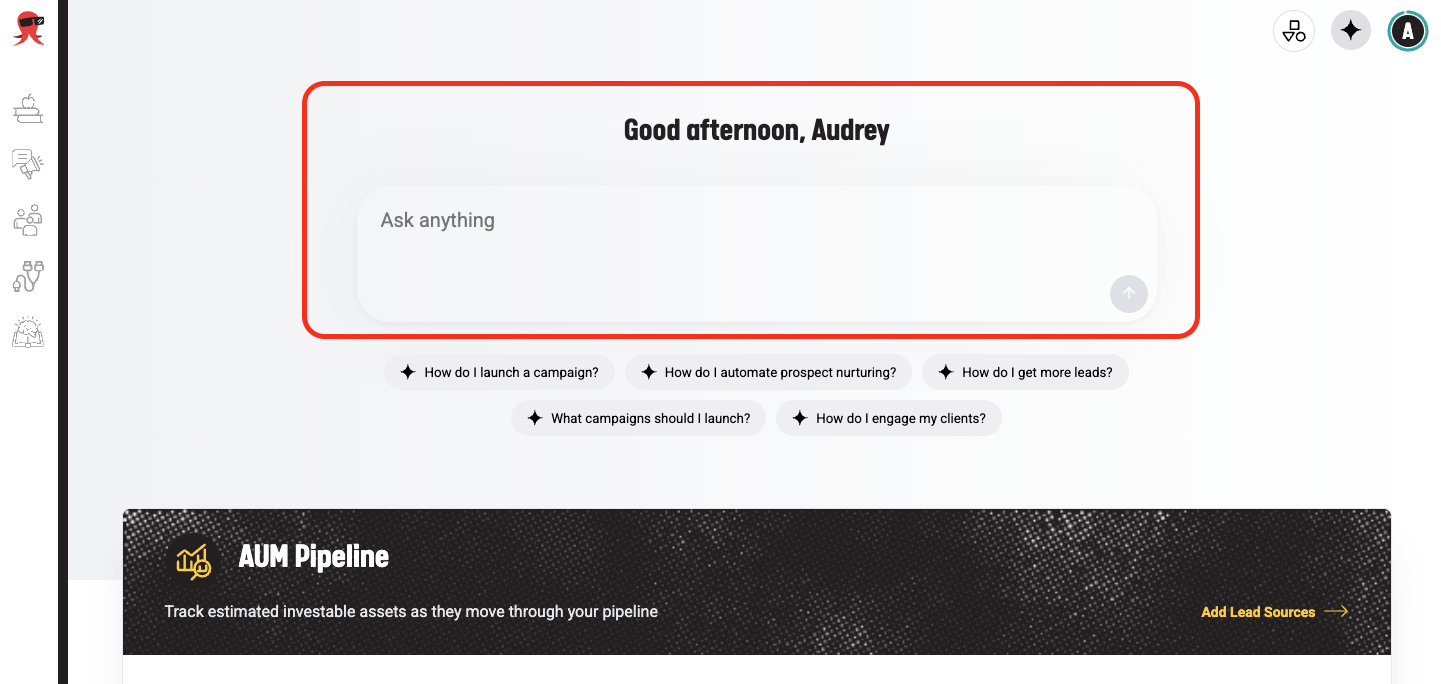
- If the icon is not available, ask your organization administrator to confirm that Snappy AI access is enabled for your organization or user.
- The chat panel opens and is ready for your question. Type your questions in the chat box so get answers.
Troubleshooting
- The Snappy AI icon does not appear: Confirm that access is enabled, then wait briefly and refresh the application. If it still does not appear, contact Support.
- Snappy AI is not available for your organization: Your organization may not have completed the required configuration. Contact an administrator or Support.
When to contact Support
Contact Support if your organization has enabled access but the icon is still missing, or if Snappy AI remains unavailable after your administrator confirms the setup.