
What this article helps you do
Open Snappy AI, start a conversation, return to an earlier conversation, and submit feedback.
Before you begin
Make sure Snappy AI is available in your Campaigns account. If you do not see the Snappy AI icon, follow the access and setup guidance here.
How it works
You can ask questions in natural language. Snappy AI uses the tools available to your signed-in account to retrieve information about campaigns, account settings, usage, templates, audiences, and other supported areas.
How to do it
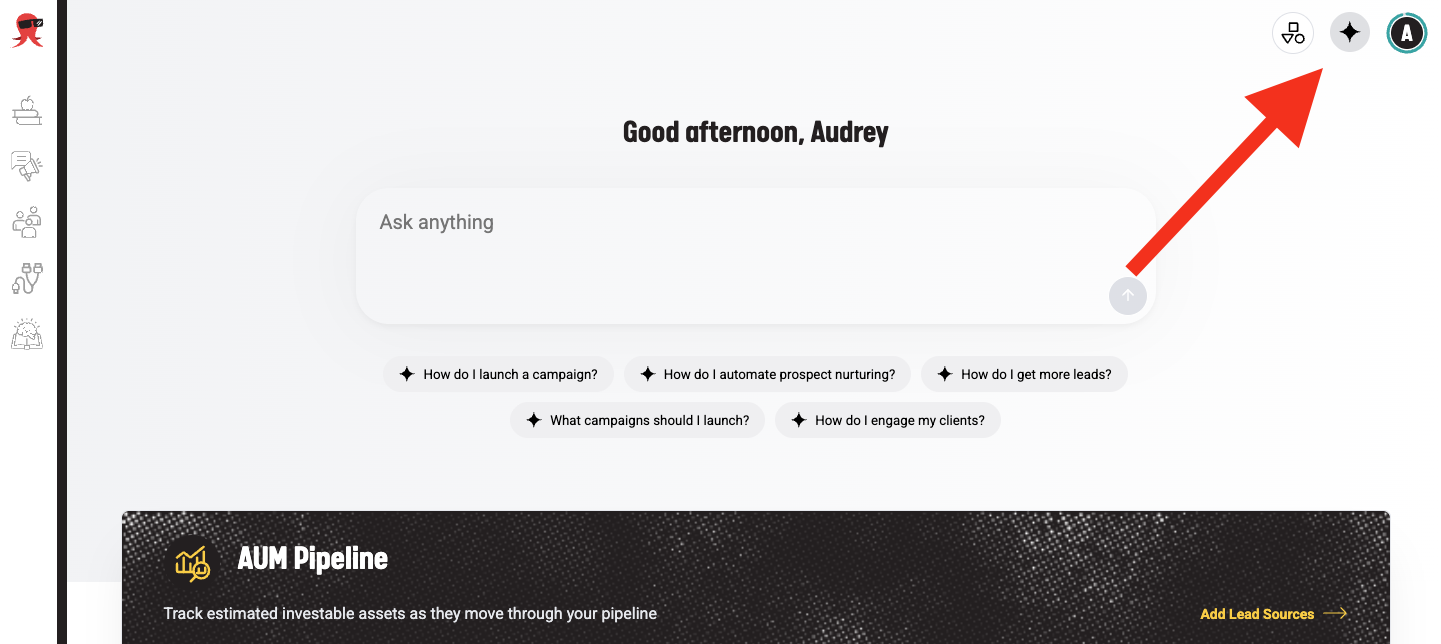
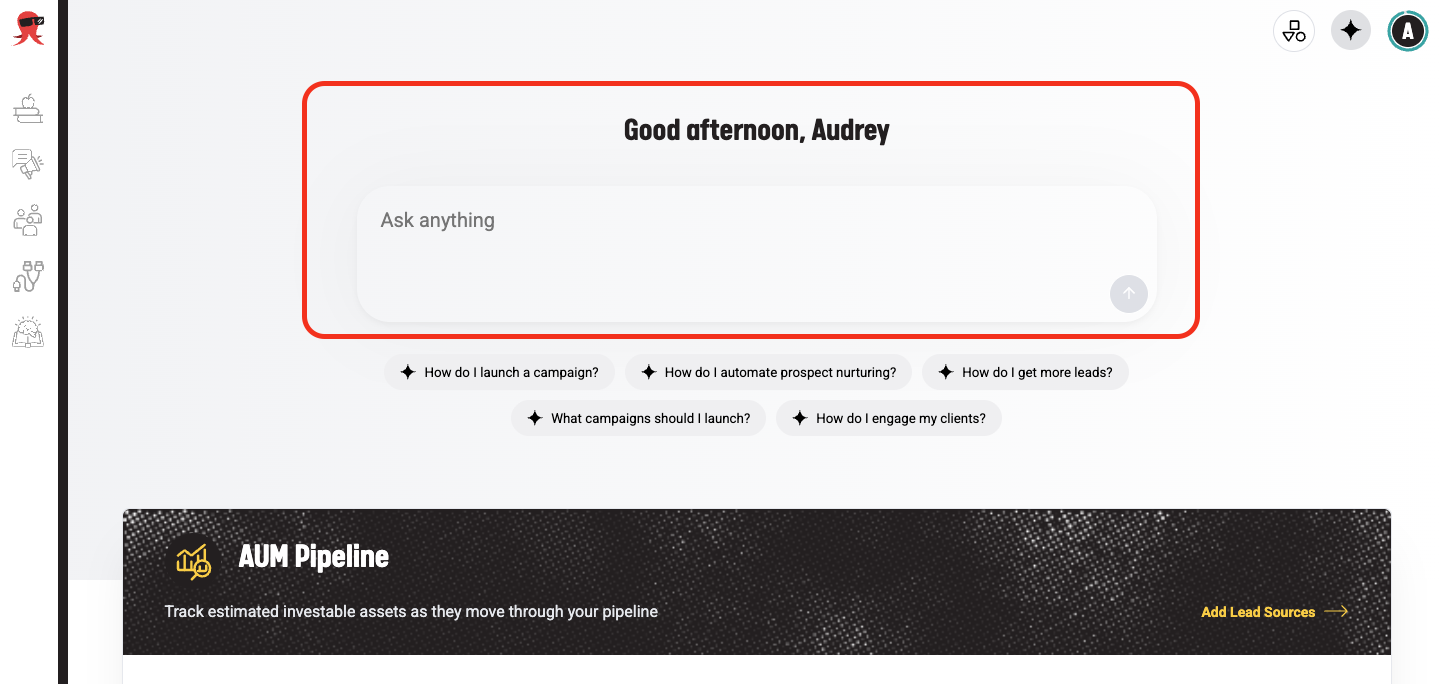
- Open the chat panel by selecting the Snappy AI icon in the top navigation bar, or type a question into the greeting prompt at the top of the Dashboard.
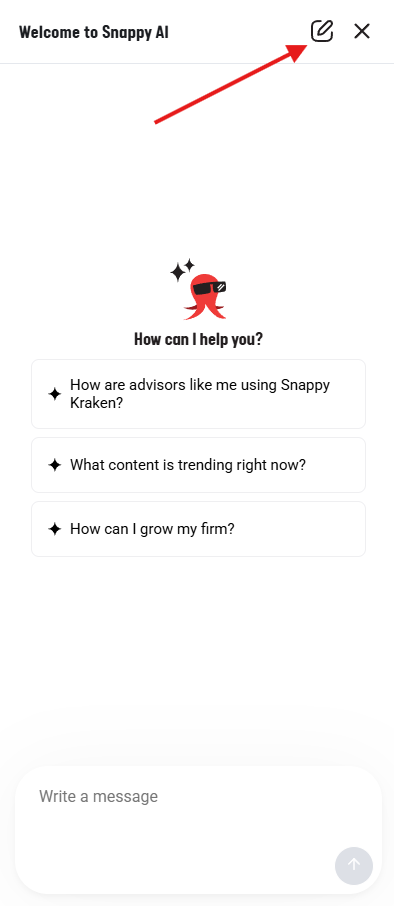
- To start a new conversation, select the new chat icon if another conversation is open.
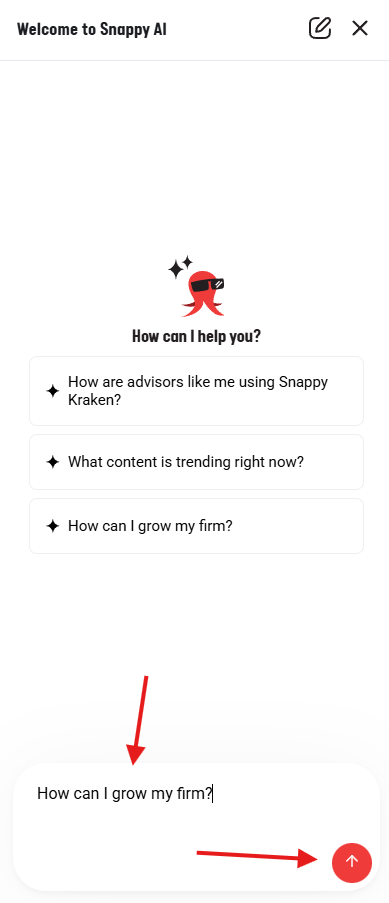
- Type your question in the message field.
- Press Enter or select the send button.
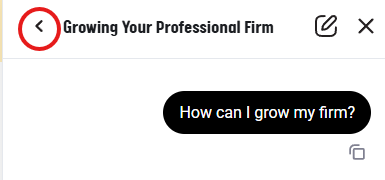
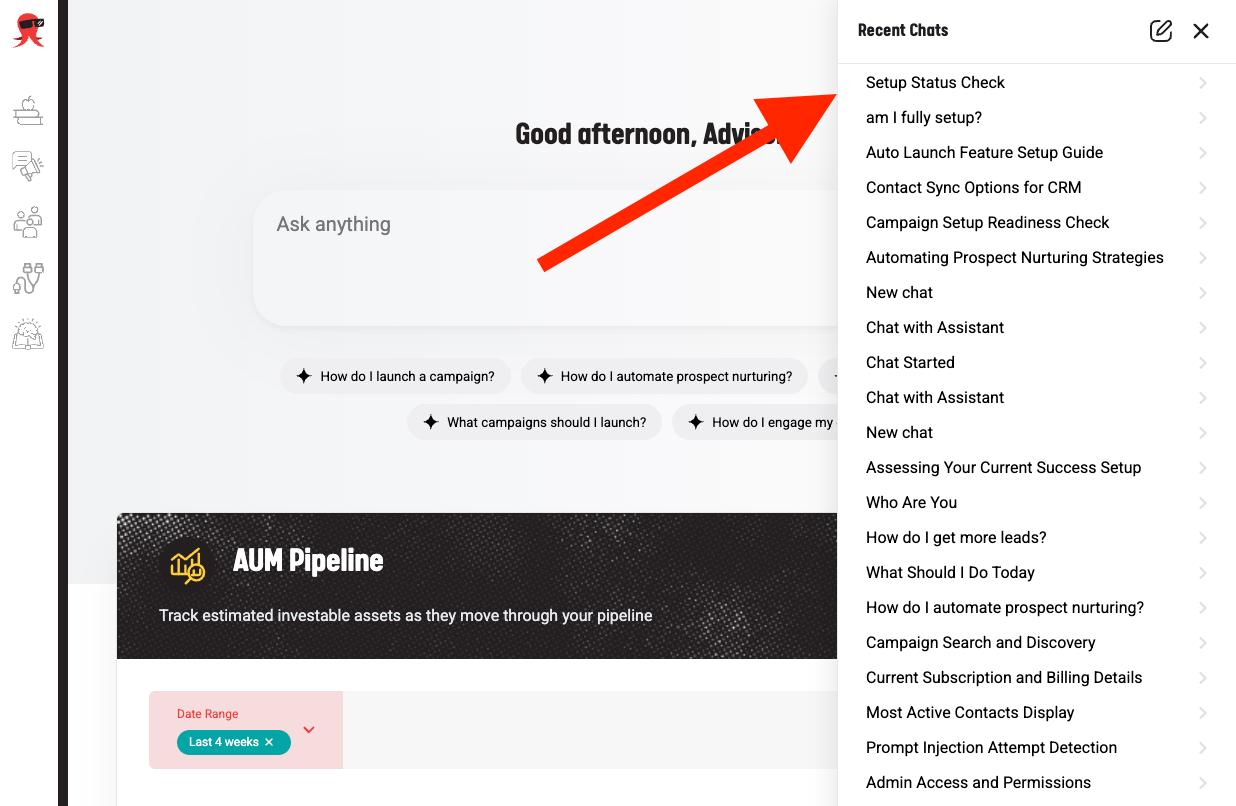
- To return to an earlier conversation, select the current conversation title or the back arrow, then select a conversation from the list. Scroll down to load older conversations.
 Snappy AI does not retain memory after you close a session.
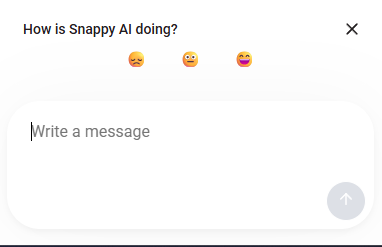
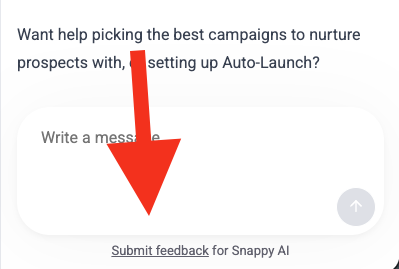
 - To provide feedback, choose a rating when prompted after a longer reply, or select Submit feedback for Snappy AI in the chat panel at any time.
What happens next
Snappy AI names a conversation automatically after the first message. Responses are delivered after the request is processed, rather than appearing word by word. A conversation remains locked while a reply is being generated.
Troubleshooting
- The message field is locked: The conversation may still be processing, or you may have reached your monthly AI credit limit. Read the message above the field.
- The reply does not complete: Wait and try again. If the same issue continues, rephrase the question more narrowly.
- A reply is inaccurate or incomplete: Ask a more specific question and confirm that the information you need is within Snappy AI's supported areas. Provide feedback so we can make improvements.
When to contact Support
Contact Support if the chat repeatedly fails after you retry, or if you see an error that does not match the troubleshooting guidance.