
Review recent delivery, bounce, and complaint rates for your sending domains and learn when to take action.
View your metrics
Domain Health Metrics are available to all advisors.
- Sign in to Campaigns.
- Go to My Account → Settings → Email Domains.
- Review Deliverability Rate, Bounce Rate, and Complaint Rate on each domain row.
- Look for a red alert icon next to any metric outside the healthy range.
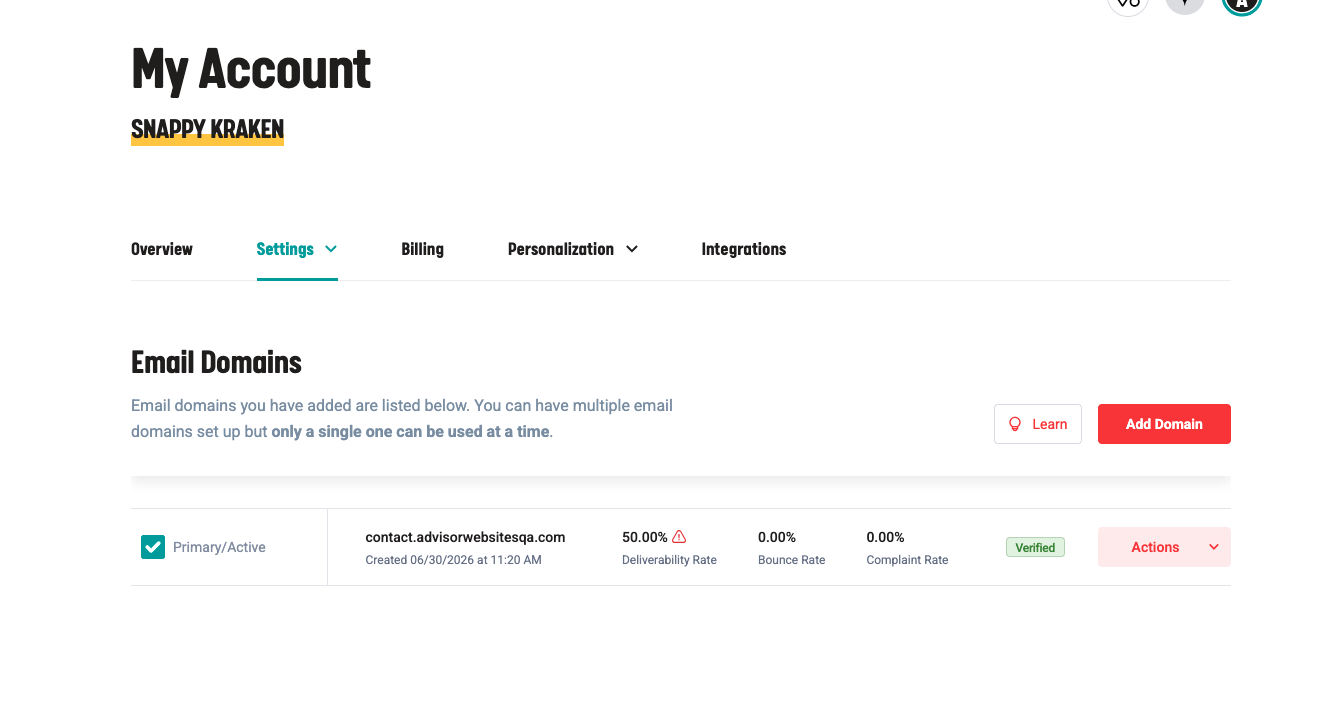
What the rates tell you
| Metric | What it helps you monitor | Healthy range | Flagged when |
|---|---|---|---|
| Deliverability Rate | Email delivery | 95% or higher | Below 95% |
| Bounce Rate | Emails that bounce | 2% or lower | Above 2% |
| Complaint Rate | Spam complaints | 0.1% or lower | Above 0.1% |
Each rate is evaluated separately. One rate can be flagged while the others are healthy. Healthy rates do not guarantee that messages appear in a recipient’s main inbox.
Know what the numbers cover
- Time window: The last 30 days of sending activity. Other date ranges are not available.
- Refresh: Once per day, not live. Updates run in batches, so domains may update at different times during the refresh.
- Scope: The entire domain, not only your own emails. If other advisors use the same domain, their sending activity contributes to these rates too.
- Volume: There is no minimum send volume. A small number of sends can produce extreme percentages.
The thresholds apply platform-wide and cannot be customized for your account. No email or in-app notification is sent when a rate becomes unhealthy; review the Email Domains page to check for alerts.
What does a dash mean?
“-” means no data, not unhealthy. There is no alert icon for an unavailable rate.
A new domain shows dashes until it has sent email and the next nightly refresh has run. Dashes also appear if the refresh has not reached the domain or if it has sent no email in the last 30 days. Previous values clear on the next refresh when a domain has no recent activity.
Verification is separate from health
Domain verification and health rates answer different questions. An unverified domain can still show rates from earlier sending activity. A verified domain can still have a flagged rate.
You must verify a domain before selecting it as primary in Campaigns.
What to do when a rate is flagged
- Check whether the domain has sent only a small number of emails recently.
- Review recent sending activity and list quality. Look for bad or expired addresses and spam complaints.
- If emails are reaching spam, review Why are my emails going to spam?
- Check again after the next nightly refresh. If you need help interpreting the values, contact Support.
Troubleshooting
My active domain still shows dashes
Wait for the next refresh after the domain’s first sends. If values remain missing after multiple nightly refreshes, contact Support to confirm sending activity and investigate.
I see 0% deliverability or 100% bounce
A small number of sends can produce extreme values. Review sending volume before assuming a widespread problem. Ask Support to help validate the results if needed.
The numbers differ from another report
Compare the same domain and 30-day window, and account for nightly refresh timing. These values are not a live view of today’s activity.
Metrics are healthy, but opens or clicks are down
Delivery and engagement are different. See Why did my email opens or clicks drop? for content, audience, and inbox-placement checks.
When to contact Support
Contact Support if an actively sending domain remains without data after multiple nightly refreshes, or if a flagged rate persists and you need help investigating. Include the domain, affected rate, observed values, and recent sending dates.