
If you create emails using tools outside Snappy Kraken, such as Canva, ChatGPT, Claude, or another design platform, you may be able to use that content in the Snappy Kraken Visual Email Builder. However, externally generated HTML does not always work the same way inside an email editor as it does in a web browser. Following the steps below will help reduce formatting issues, especially on mobile devices.
What this article helps you do
- Prepare externally created email content for the Snappy Kraken Visual Email Builder.
- Give AI tools the correct instructions before they generate or modify email HTML.
- Add compatible HTML to your email without replacing the builder's existing structure.
- Test the finished email before sending it to your audience.
Consider using Snappy AI
Before using an external AI tool such as ChatGPT or Claude, we encourage you to explore Snappy AI, the AI assistant available directly within the Snappy Kraken Visual Email Builder.
Snappy AI allows you to create or edit email designs directly within the Snappy Kraken Visual Email Builder. Unlike externally generated HTML, Snappy AI builds emails using the Visual Email Builder's native content blocks, helping prevent the formatting and compatibility issues that can occur when pasting custom HTML.
This also means you can easily edit text, images, buttons, and layouts directly within the Visual Email Builder, rather than having to modify HTML code whenever you want to make changes.
How to access Snappy AI
- Open the email you want to create or edit in the Snappy Kraken Visual Email Builder.
- Locate the Snappy AI chatbox in the bottom-right corner of the editor.
- Click the chatbox labeled "Ask AI to create or edit the design...".
- Describe the email you would like to create or the changes you want to make to your existing design.
- Review the AI-generated changes and make any necessary adjustments before saving and testing your email.
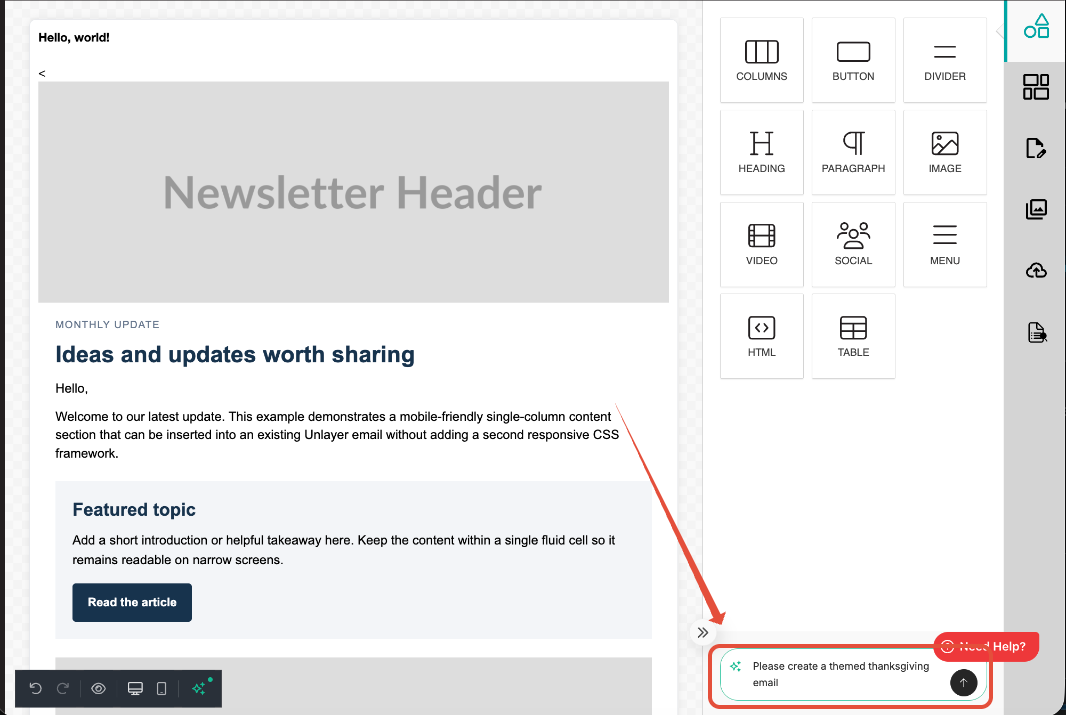
For more information about Snappy AI and how to use it, please see our What Is Snappy AI and How Do I Access It? support article.
If you prefer to create emails with an external AI tool, review the following disclaimer and instructions before generating custom HTML.
Important information about externally generated AI emails
Disclaimer: The prompt rules, examples, and recommendations provided in this article are intended as general guidance to help improve compatibility with the Snappy Kraken Visual Email Builder. They do not guarantee that AI-generated or externally created HTML will display or function correctly in every email client or on every device.
AI-generated content may contain formatting errors, unsupported HTML or CSS, broken links, or other issues that require manual corrections. Snappy Kraken cannot guarantee the accuracy, compatibility, or performance of content generated by third-party AI tools.
Users are responsible for reviewing their email content, verifying links and images, ensuring any required compliance disclosures are included, and testing the delivered email before sending it to their audience.
Before you begin
There are two common ways to bring externally created content into your email:
- Images and design assets: If you designed an email in Canva or another visual tool, export the individual images or graphics and assemble the email using the Visual Email Builder's standard content blocks. This is generally the most reliable option for responsive layouts.
- Custom HTML: If you have email-compatible HTML created by an AI tool, developer, or another platform, you can insert the appropriate HTML fragment into an HTML content block. It must be designed to work within the Visual Email Builder rather than as a complete standalone email document.
Important: A design that looks correct in Canva, a browser, or an AI preview is not necessarily compatible with email clients. Canva designs and exported web-page HTML should not be assumed to work when pasted directly into the email builder.
1. Using external AI: Attach the prompt rules first
Before asking ChatGPT, Claude, or another AI assistant to create or edit an email, download the Email Prompt Rules .txt attachment located at the bottom of this support article and upload it to your AI conversation. The file explains the HTML structure, formatting limitations, and mobile compatibility requirements for content inserted into the Snappy Kraken Visual Email Builder.
Where to find the file: Scroll to the bottom of this article to find the Email Prompt Rules .txt attachment. Upload the downloaded file to ChatGPT, Claude, or your preferred AI tool before creating or editing your email.
Tell the AI to follow the attached file's instructions for the entire task. If you already have an email design or existing HTML, attach that as well so the AI can preserve the intended content and appearance.
Example prompt to copy
I am creating an email to use in the Snappy Kraken Visual Email Builder. Follow the attached Email Prompt Rules file when creating or editing the HTML. I will paste the result into an HTML content block inside an existing email template, so return only the compatible HTML fragment, not a complete HTML document. Preserve my supplied wording, links, images, and disclosures. Export the finished HTML code as a plain-text .txt file. Do not claim it has been tested unless an actual email send has been reviewed.
Then describe the email you want to create, including its text, images, colors, links, and layout. If you want the AI to revise an existing email, ask it to make only the necessary changes rather than rebuilding unrelated sections.
2. Prepare content created in Canva or other design tools
If your email was designed in Canva or another visual editor, we recommend using the exported graphics and rebuilding the email layout with the Visual Email Builder's standard rows, columns, text, image, and button blocks.
- Export the individual images or graphics you want to use.
- Keep important text, links, and buttons as editable email content whenever possible instead of placing the entire message in one large image.
- Use the Visual Email Builder to arrange the content and configure the mobile layout.
- If your design tool supplies HTML, have it reviewed or adapted for email compatibility before inserting it into an HTML content block.
Note: Pasting a full web-page export or a complete HTML document into a content block can introduce conflicting styles and cause sections to display incorrectly on mobile.
3. Add custom HTML to the Snappy Kraken Visual Email Builder
- Open the email you want to edit in the Snappy Kraken Visual Email Builder.
- Locate the section where you want the externally created content to appear.
- Add an HTML content block to that section.
- Open your generated .txt file, copy the HTML code, and paste it into the HTML content block.
- Review the result in the editor and adjust the surrounding spacing or layout as needed.
- Save your changes and proceed to testing before scheduling or sending the email.
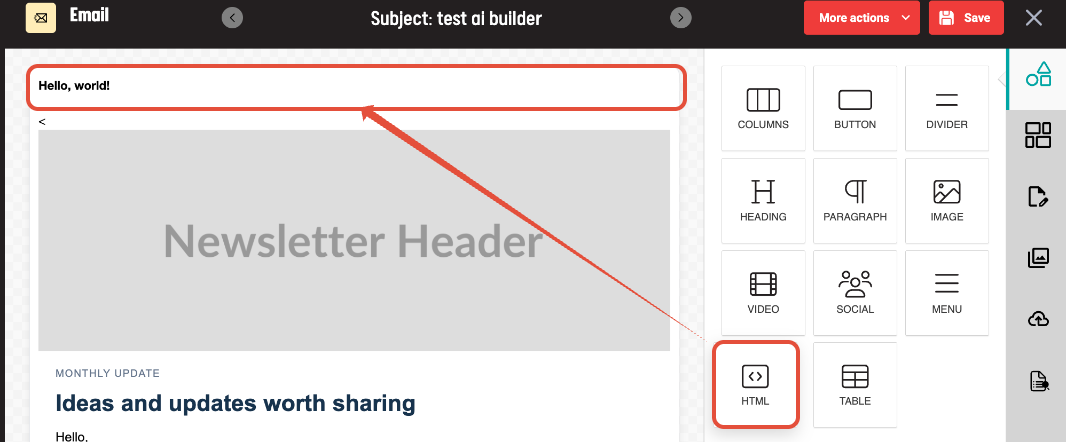
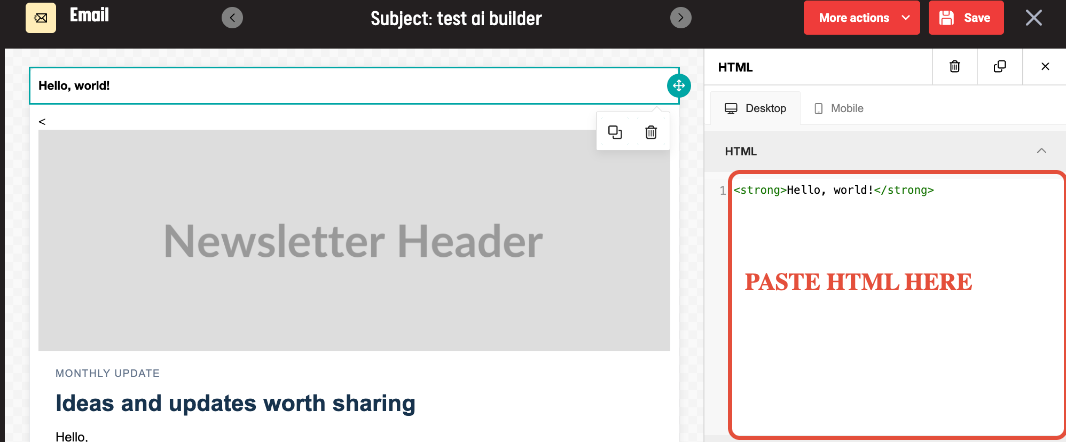
Important: Do not paste an entire standalone HTML document into the block. The Visual Email Builder already provides the outer email structure. Custom tables or columns inside an HTML block also do not automatically inherit the builder's responsive stacking behavior. For layouts that need reliable mobile stacking, use the builder's native rows and columns whenever possible.
4. Preview and send a test email
Always test the completed email before sending it to contacts. An email may look correct in the editor but render differently after delivery, particularly on an iPhone or in Outlook.
- Review the desktop and mobile previews in the Visual Email Builder.
- Send a test email to an external mailbox, such as Gmail or Yahoo, rather than relying only on an address managed by your own organization.
- Open the delivered email on a mobile device and, when possible, in more than one email app.
- Confirm that images scale properly, text remains readable, buttons work, and multi-column sections do not become cramped or extend beyond the screen.
- If you find an issue, provide the original HTML and a description or screenshot of the problem to your AI tool and ask it to make a targeted correction while continuing to follow the attached rules.
A successful preview is useful, but it does not replace testing the actual delivered email.
Common formatting issues
Text or images are squeezed into narrow columns on mobile
This usually means a custom table or column layout is staying side by side instead of stacking or wrapping. Consider rebuilding that section with native Visual Email Builder columns, or have the HTML adjusted to use a compatible layout.
Images are too large or extend off the screen
Check that images can scale within their containers and are not constrained by oversized fixed-width elements. Ask your AI assistant to preserve the image's proportions while making the layout mobile-friendly.
The email looks different after sending
Email clients support HTML and CSS differently. Styles that work in a browser or editor preview may not behave the same way in Gmail, Apple Mail, or Outlook. Use the delivered test email to identify the affected section before making changes.
The pasted code changes the layout of the rest of the email
The code may include document-level tags, broad CSS rules, or an independent layout system that conflicts with the Visual Email Builder. Return to the prompt rules and have the AI generate only the compatible content fragment.
What happens next
Once your delivered test email looks correct on desktop and mobile, you can continue with your normal review, approval, and sending process. Re-test whenever you make significant changes to the HTML, images, or layout.