
When you register your domain and set up DNS in Campaigns, you create a secure connection between your domain and Snappy Kraken.
This helps your emails appear more authentic because messages can be sent from your own email domain. It can also improve deliverability by helping email providers recognize that Snappy Kraken is authorized to send emails for your domain.
Why DNS setup matters
DNS setup helps confirm that Snappy Kraken has permission to send emails using your domain.
For example, if your domain is www.example.com, DNS setup helps connect that domain to your Campaigns account so your marketing emails can be sent from your selected sending address.
Without DNS setup:
- Emails may still be sent from your personal email address.
- Some email providers may show that the email was sent on your behalf by Snappy Kraken. (See Why does my sender line look like spam?)
- More emails may be filtered into spam if the sending domain and email address do not match.
Setting up DNS helps create a more trusted sending experience for both you and your contacts.
What is a subdomain?
An email subdomain is the word (or short phrase) that comes before your main domain name. For example, in newsletter.yourcompany.com, newsletter is the subdomain.
When you send marketing emails from a subdomain (like hello@newsletter.yourcompany.com), it helps keep your main company domain protected.
Why use an email subdomain?
- Protect your main domain: If your marketing emails get a lot of spam complaints, it’s less likely to affect your regular business email.
- Keep things organized: You can use different subdomains for different types of messages (newsletters, event invites, automated updates, etc.).
- Build trust over time: A dedicated subdomain can develop its own sending reputation with email providers. See Why are my emails landing in my contact's spam inbox? (Understanding Email Reputation)
Before you begin
- Have the sending email address you want contacts to see.
- Make sure you or your domain administrator can access the account where your domain’s DNS records are managed.
- Check whether your organization requires a specific sending subdomain.
Connect your domain during onboarding
During onboarding, you may be prompted to connect your sending domain.
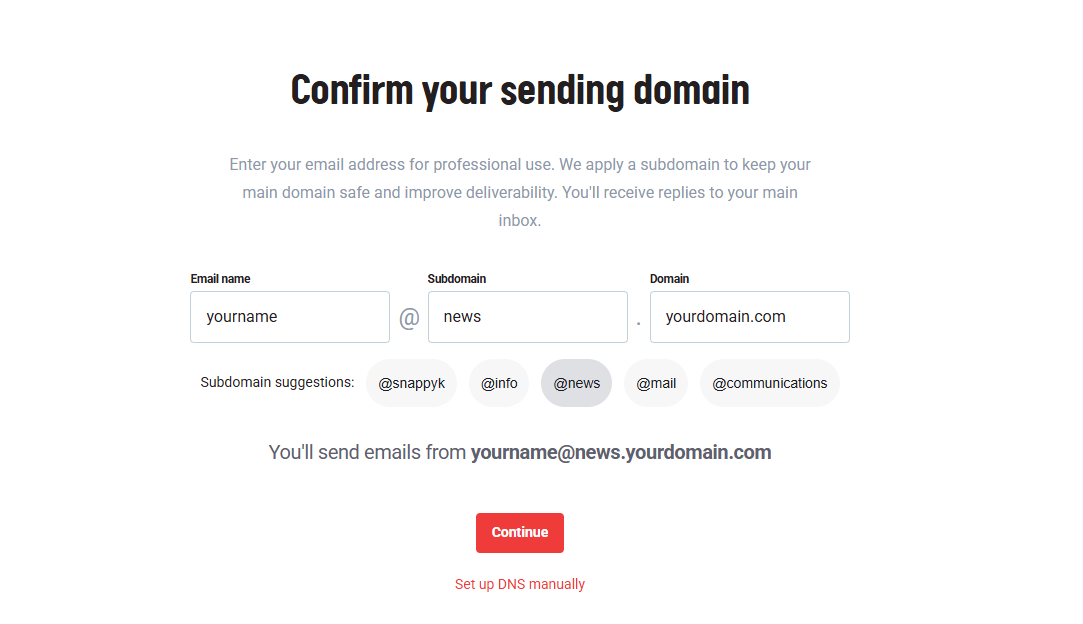
Enter the sending email address you want contacts to see.
Select one of the suggested subdomains or enter a custom subdomain, such as
comms.NOTE: If your organization requires a specific subdomain, you may not be able to change this option.
Continue through the setup prompts.
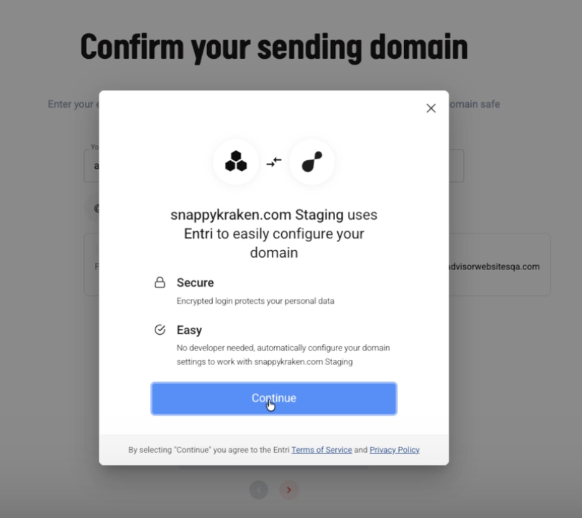
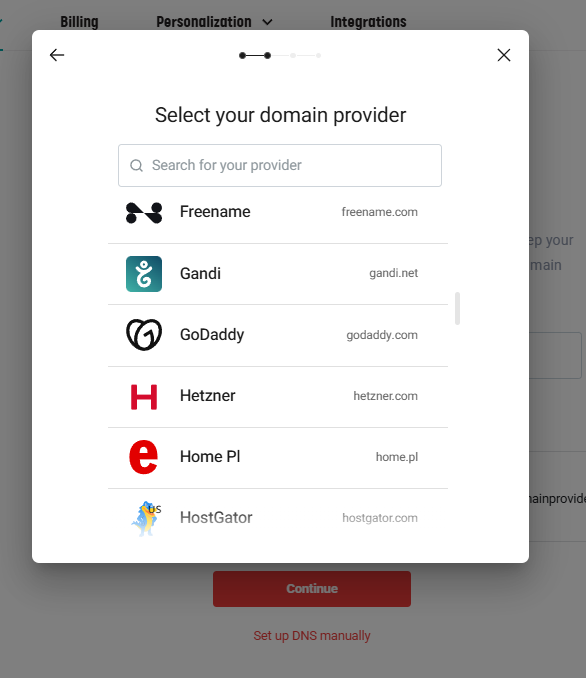
When the Entri window opens, choose your domain provider.
Sign in to your domain provider account.
Approve or authorize Entri to make the required DNS changes.
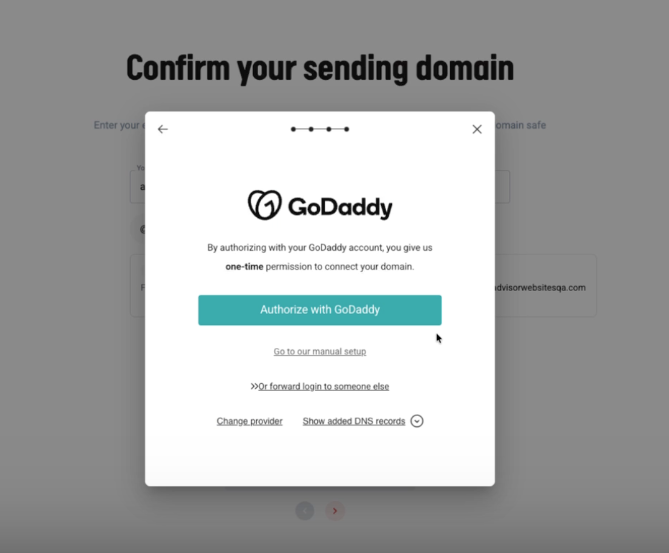
Click Connect.
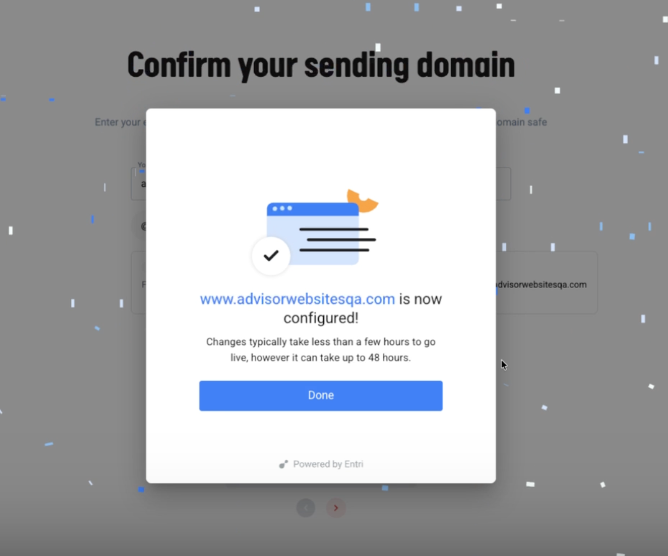
Once connected, the required DNS records are published automatically.
What happens after setup?
After DNS records are added, your domain needs to be verified. This process may happen quickly, but it can take up to 48 hours because DNS changes need time to update across the internet.
Once verification is complete, your domain status will show as Verified.
What if automatic setup does not work?
If your domain provider is not available in Entri, or if you do not want to authorize Entri to make DNS changes, you can set up DNS manually.
Manual setup requires copying the DNS records from Campaigns and adding them to your domain provider account.
If you are not comfortable making DNS changes, contact your website, email, or domain administrator for help.
When to contact Support
Contact Support if setup fails or the domain still is not verified after allowing up to 48 hours for DNS changes. Include your account, domain, domain provider, and the error or step where you got stuck.